TS2014 Reset Instructions
1 min
Terso Large RFID Refrigerator (TS2014)
There are 2 types of resets that can be performed on Terso Next Generation enclosures, these are “Soft Reset” and “Hard Reset”, this document will detail both reset types that can be requested. Soft Reset: A soft reset is performed directly through the touch screen on the front of the device.
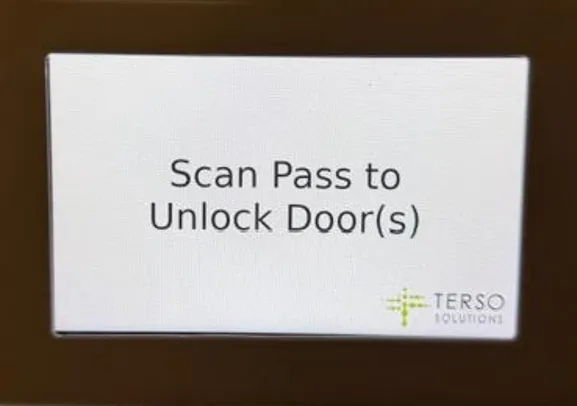
- The front screen typically says “Scan Pass to Unlock Door(s)”.
- Touching the screen will present the user with 3 buttons.
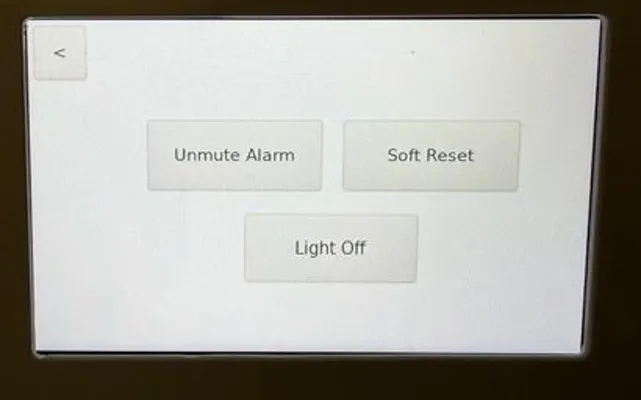
- After pressing “Soft Reset” the screen will go dark before showing a loading Icon with a few Penguins in the upper left corner of the screen.
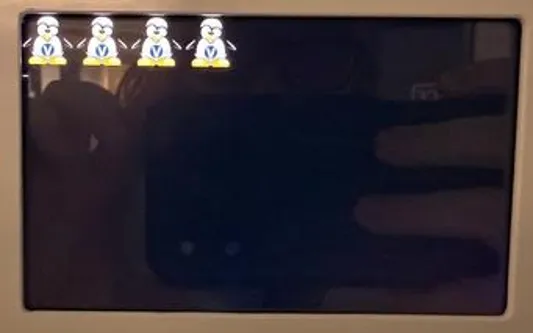
- The device will continue through a series of prompts on the screen indicating “Please wait, System Booting”, followed by “Please wait, System Scanning”.
- Once the screen has returned to “Scan Pass to Unlock Door(s)” the soft reset is complete.
Hard Reset: The 2nd type of reset that may be requested is referred to as a “Hard Reset”, this reset will allow all of the RFID electronics to shut down completely and startup from a fresh state.
This reset will require access to the back of the device where users will find a panel and diagram indicating what each of the switches does.
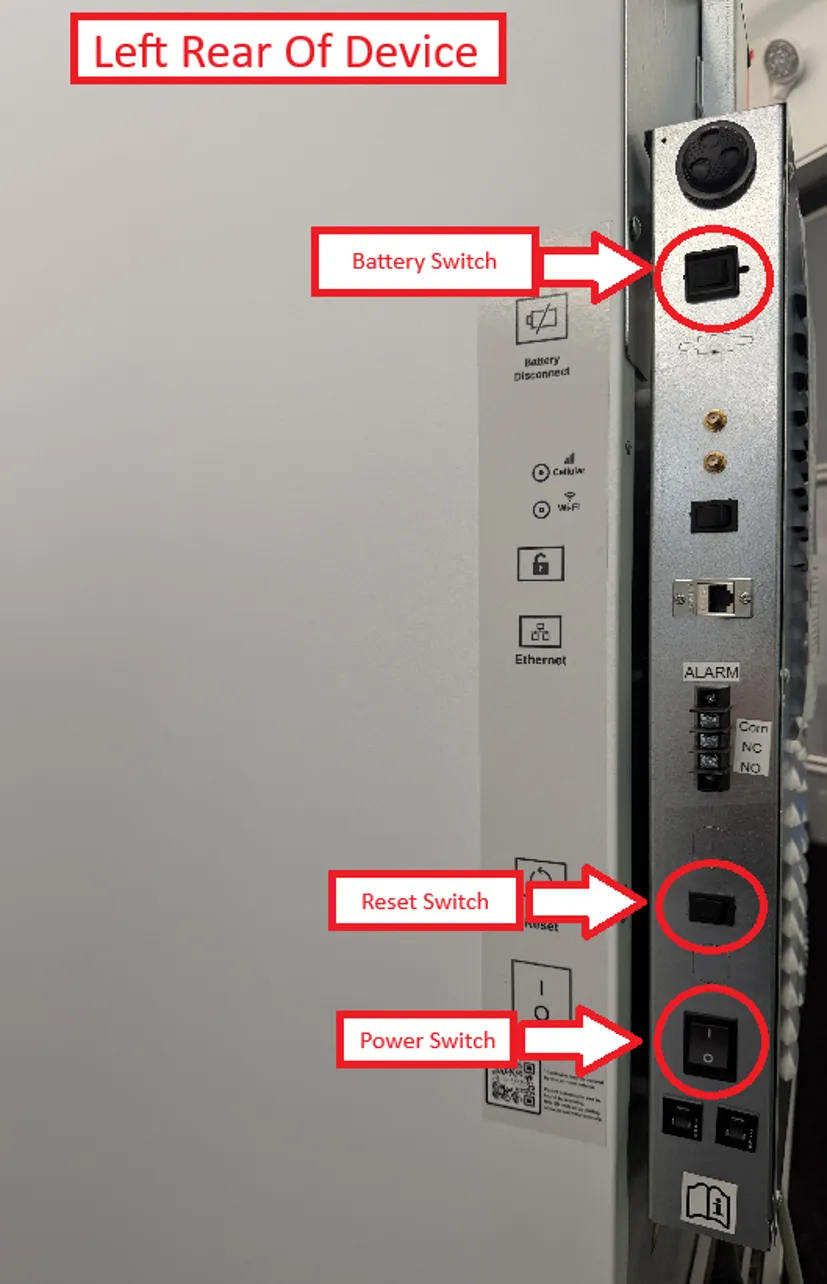
- Flip the battery switch to the “off” position.
- Flip the Power Switch to the “off” position.
- Press the “Reset Switch”.
- Check the touchscreen to confirm it has gone dark.
- Turn the power switch and battery back to the “ON” position.
- The system will go through the bootup process similar to the soft reset by showing the “penguins” and the same series of messages should follow.